How do I...

scrapperjade

New member
Some layouts I've seen in the gallery have the text faded as it reaches the edges... how do I do that?

I want to write the lyrics to a lullaby that I sing to Avalynne when she's upset, but I don't just want a big block of text, you know? I'd like to have the lyrics as part of the background with the edges soft.

Anybody know how to do that? Do I make any sense??
 
If you type up the text and then simplify the layer, I believe there is an option in PS or PSE where you can do a fade design to a photo (Darker on one side, lighter on the other). I know this probably isn’t much help, but maybe it’ll spring someone’s memories hat knows how to do this more specifically than I!

Cheers!
Rachel
 
I don't know if it's the easiest way to do it, but I create a gradient map with one side colored and the other side transparent. Then I use that as a clipping mask.
 
I use a gradient to do mine and use it as a mask.

Example...on the left is the mask I used and clip it to the journaling layer to come up with the example on the right.

maskedjournaling.jpg
 
Last edited:
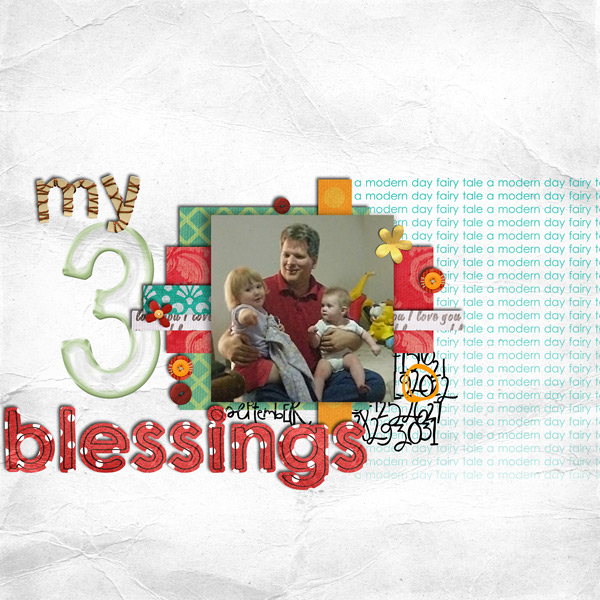
are you talking about a page like this:

my-3-blessings.jpg


This is my page and the wordart I used was prefaded for me. But I would type my text out, simply and then make a gradient layer in the style I wanted it faded, with the darker part for the more readable part and then clip it. You could then fiddle with your blending modes to get the desired look.
 
Thanks girls!! I will try it out!

Liz - yeah, thats the kind of look I'm thinking of!

Misty - I'll see if I can find a layout to show you...
 
Here's a layout with what I had in mind:

You-bring-me-joy1.jpg


I don't want to throw a pic in there like that, but see how the text is all faded and grungey? Thats what I'm thinking.

Or this one:
summer_joyw.jpg
 
Last edited:
Jaedyn, both of those layouts look like a "photo" masks was used over the word art to create that effect. You can also add a layer mask and use a soft edge eraser brush and blend the word art into your page.
 
Jaedyn, you can also try using a really grungy brush -- use a clipping mask and mess with the opacities of the brush. HTH!
 
Okay, this is going to sound dumb but how do I make gradient and layer mask??? I've been playing with it for like 20 minutes and I get the gradient layer, but I can't clip my text to it (even when I simplify it).

I don't know what I'm doing! Help!
 
Last edited:
I use CS3...can someone do a simple TUT or screen shots? This looks like F-U-N with a capital letter F. Thanks!
 
Sorry this took me so long, Jaedyn! Here are instructions for PSE (I used PSE 5, but it should work in 6 as well.)

Grab a background for your LO. ;) Type out your text and then simplify the layer (right-click on the layer and choose simplify).

simplifytext.jpg


PSE doesn't let you add a layer mask, but we can workaround this by adding an adjustment layer that DOES have a mask and having your simplifed text layer "share" the mask.

So the next step is to add the adjustment layer below your text layer. (A Levels adjustment layer will be fine.)

adjustmentlayer.jpg


Now click on your text layer and group it with the levels layer beneath.

groupwithprevious.jpg


Now whatever you do to the layer mask will be applied to the grouped layer above. Pretty neat trick, huh? (I totally learned it from photoshopessentials.com -- can't take credit for it.)

So now it's time for the brush work. Make sure your foreground color is black and paint on the layer mask. (If you don't like how it looks, switch the foreground color to white and paint over it.)

You can use a large soft round brush around the edges to fade it -- adjust the opacity so it doesn't completely delete everything.

softroundbrush.jpg


If you want to grunge it up and have the edges be "uneven" then you'll want to use a grunge brush. I used some from Colorburned that you can find here for free: http://colorburned.com/2009/04/27_grungy_film_photoshop_brush.html

Adjust the opacity for different effects. (And remember, painting in black "erases" ... paint in white to "undo" what you did.)

grungebrush2.jpg


Just play around with the brushes to get the effect you're looking for. HTH! You can catch me on YIM if you need help: suzyqscraps

 
To do this in PS, you would rasterize the text layer and then add a clipping mask directly to the rasterized text. (Make sure you're on the text layer, then click on the gray box with the white circle -- it's at the bottom of the layers palette, next to the fx symbol.)

The brush work and stuff would be the same.
 
Thank you so much for posting the tutorial Suzy! I think I can handle this, lol!!! It seems pretty easy and straightforward - I'll post my layout soon!
 
Back
Top